
Customize your view, search the transcript, and add notes during a LiveLitigation event.
Open the link in your email invitation and follow the prompts to confirm your email and check your camera and microphone. The full joining walkthrough is in How to Attend an eSuite Deposition.
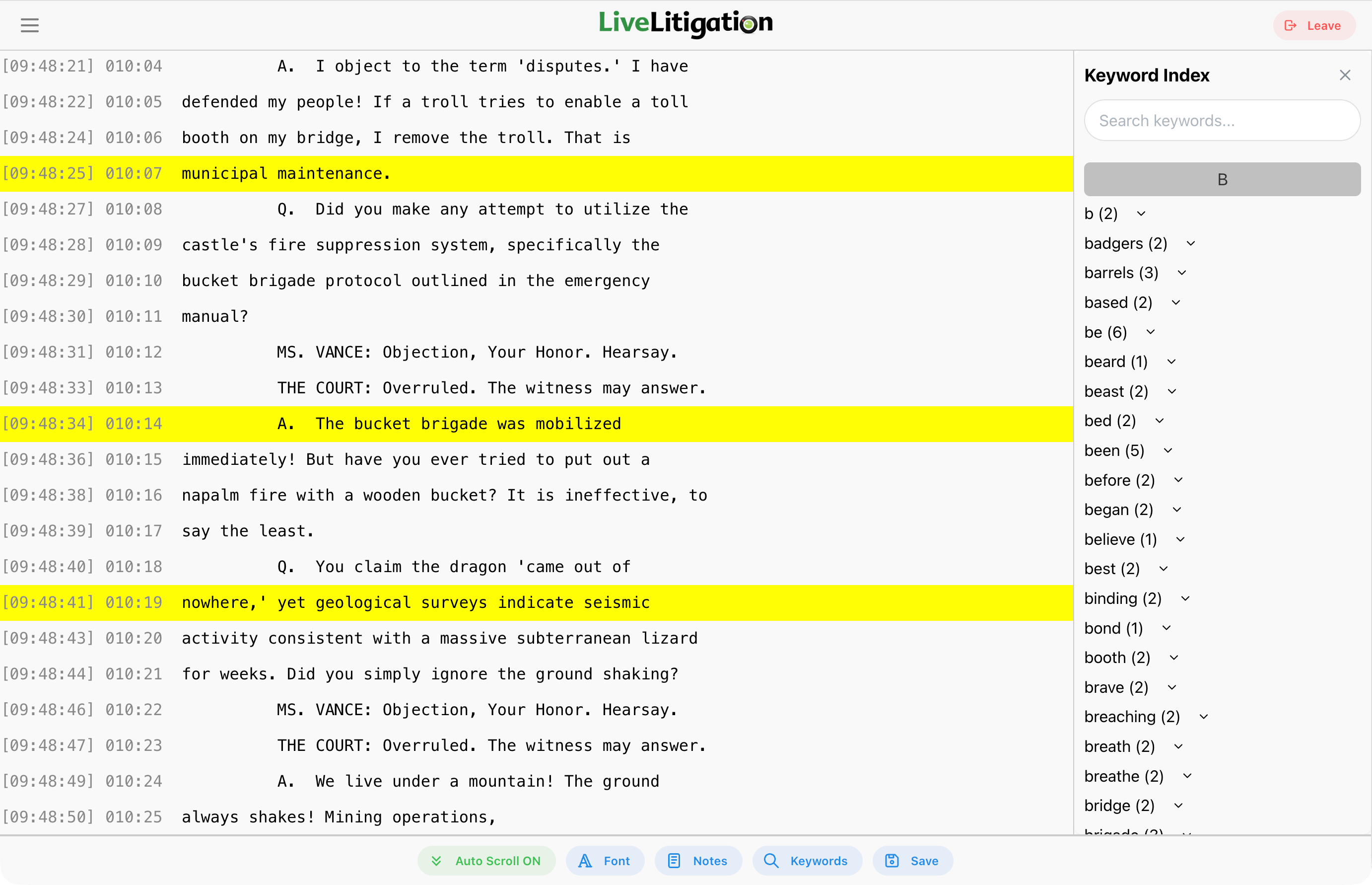
When viewing the transcript, ensure Auto Scroll is enabled to stay live with the court reporter's text.

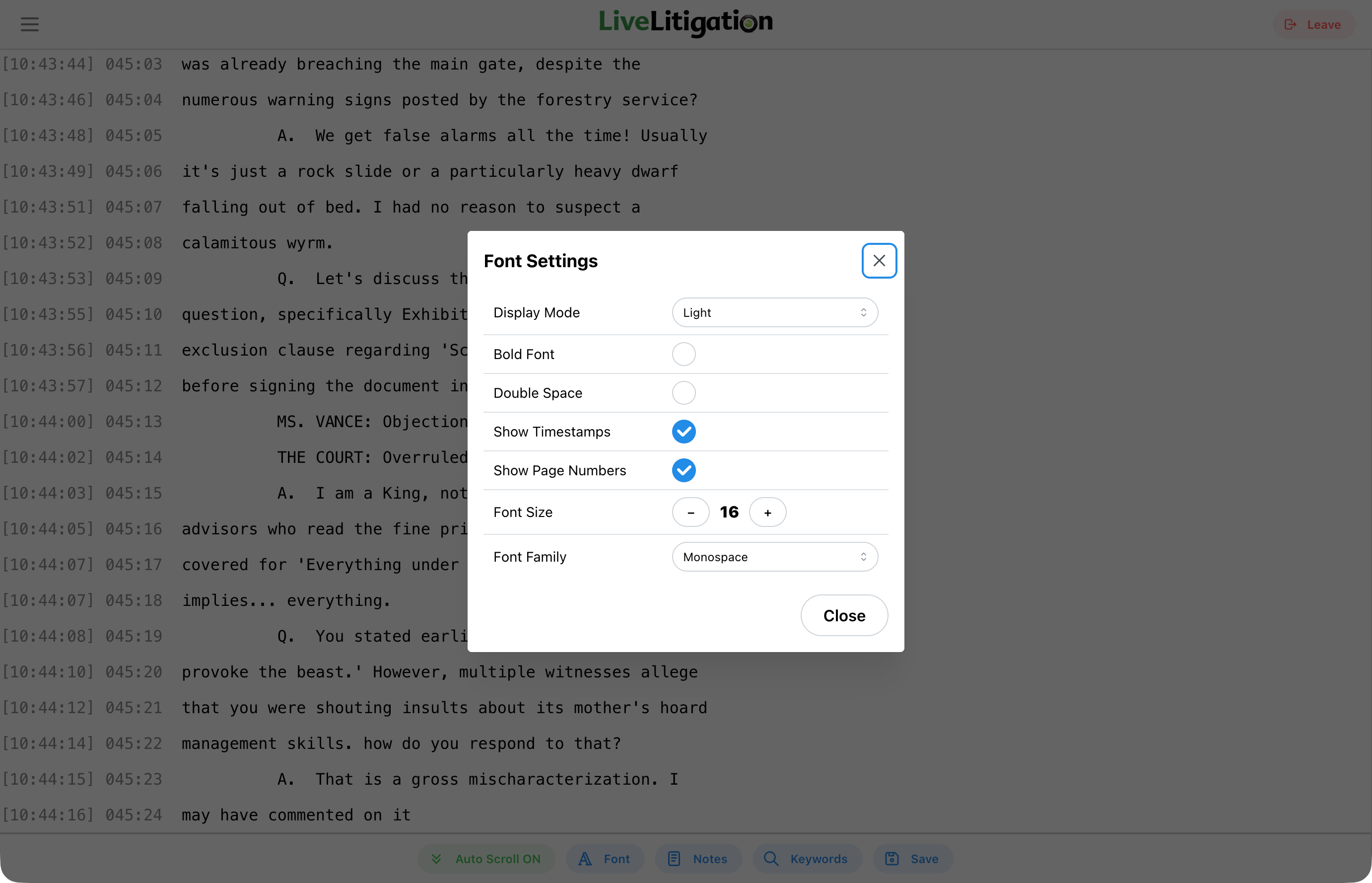
Use the Font Settings to customize the transcript appearance:
These settings are remembered in the browser you are using, so they are still in place the next time you join from the same computer.
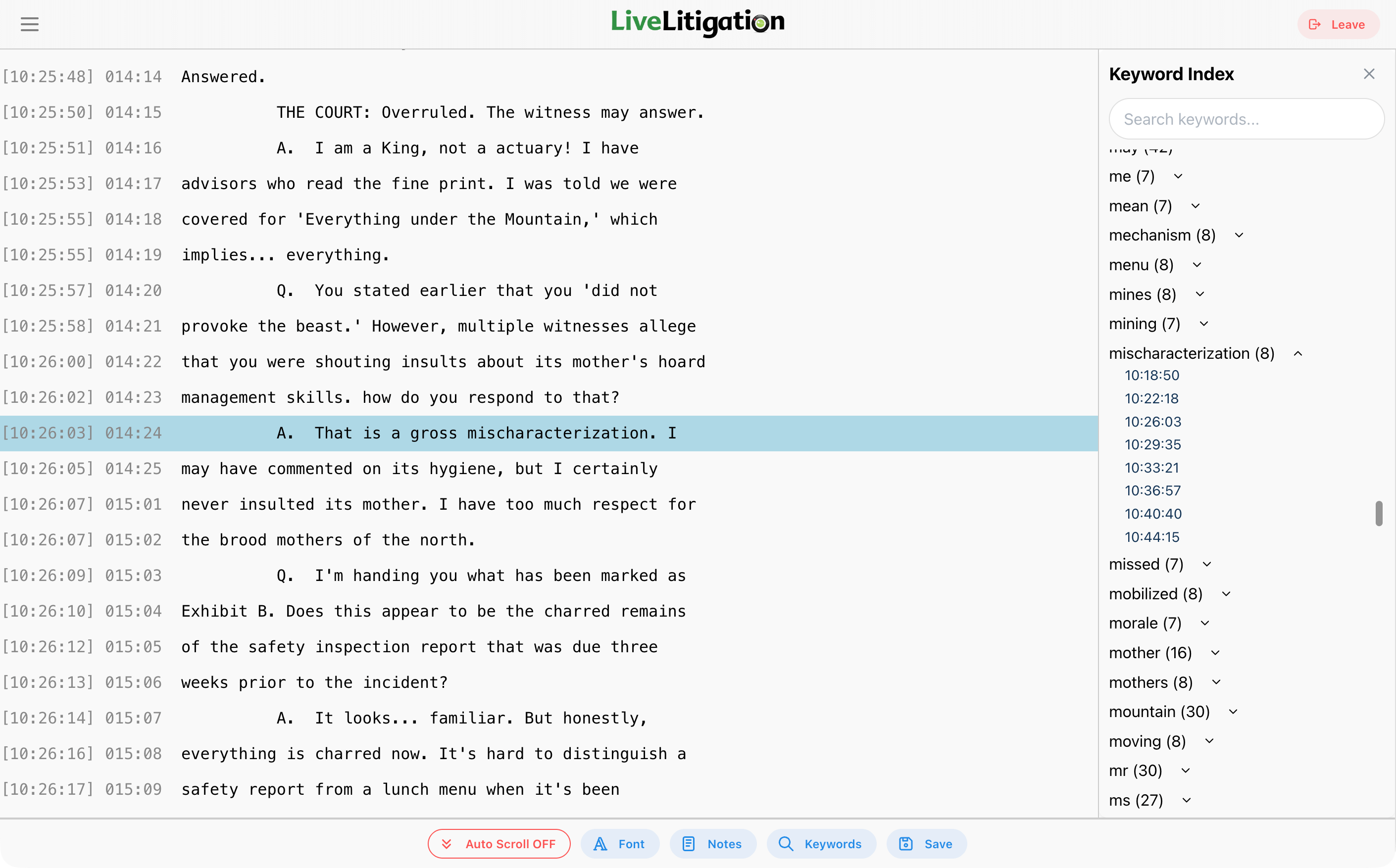
Use the Keyword Index to find terms in the transcript. The search finds all iterations of a word (e.g., "stream" finds "Streaming" and "streams").
Jump directly to the line of transcript where the keyword appears by clicking on the keyword and then a timestamp.
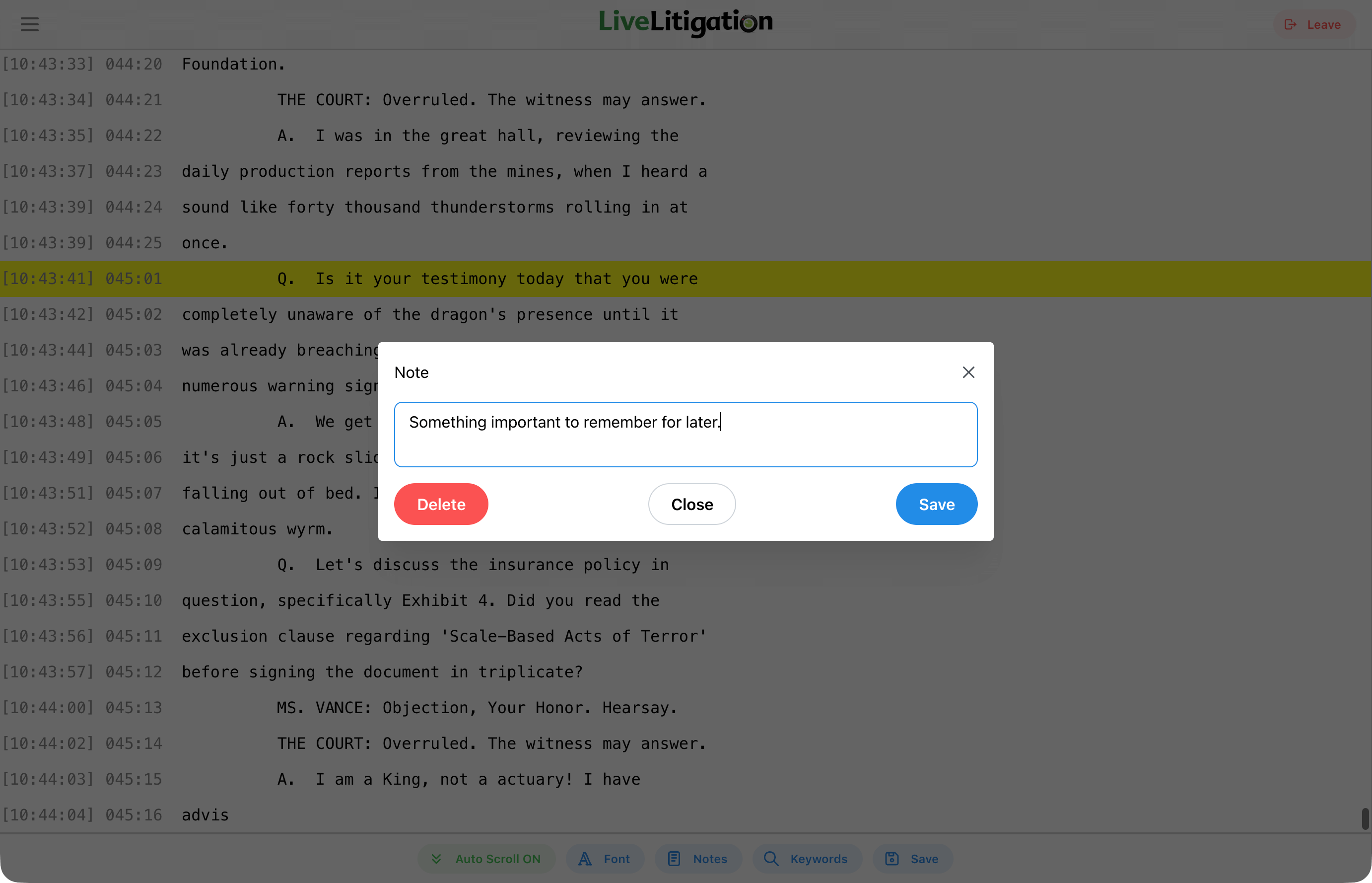
Click or Tap on any line in the transcript to add a Realtime Note. This highlights the line for later reference.
Each note carries a Highlight color, so you can separate one line of enquiry from another as you go. Use Change Color to recolour a note you have already made.
Click or Tap the highlighted line again to edit the note, and use Delete to remove it.
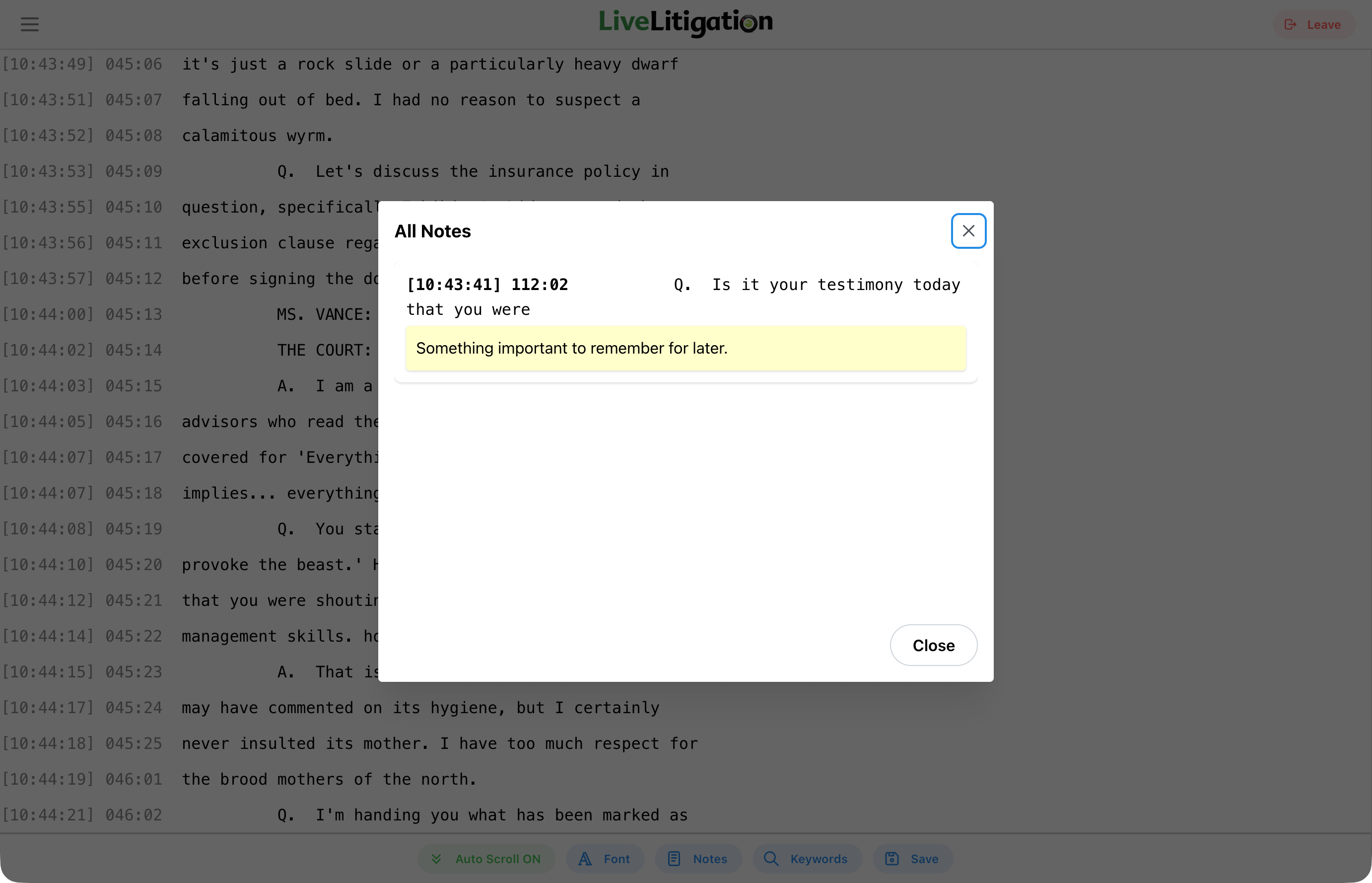
Click or Tap the Notes button to view a list of all your highlighted lines and annotations.
From here you can Download PDF to save just your notes, which is a separate document from the transcript itself and needs no export code. Clear All removes every note at once.
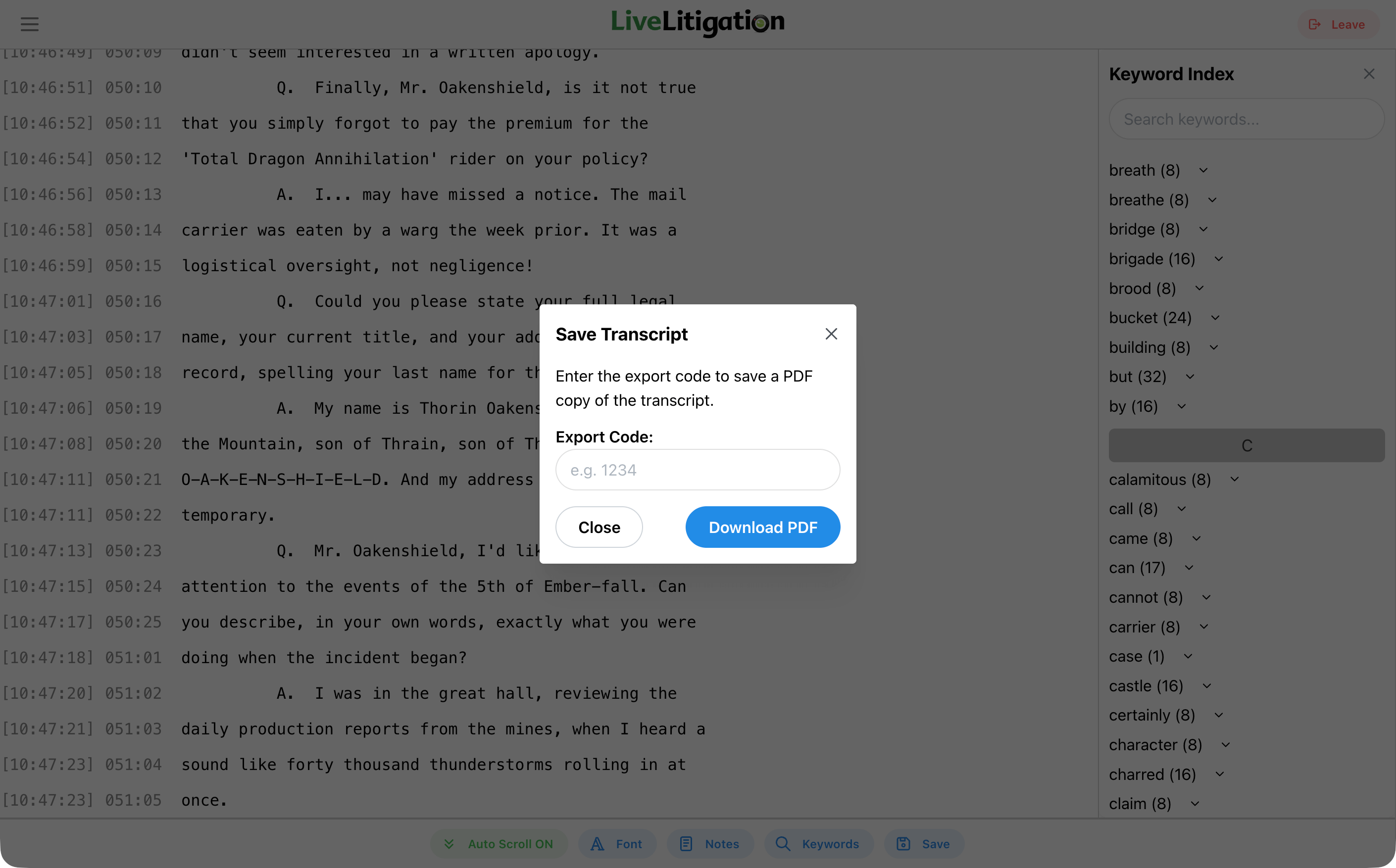
Click or Tap the Save button to download a PDF copy of the transcript.
Enter the Export Code provided by the court reporter to download the transcript.
Explore the platform